View
See what the blade cuts.
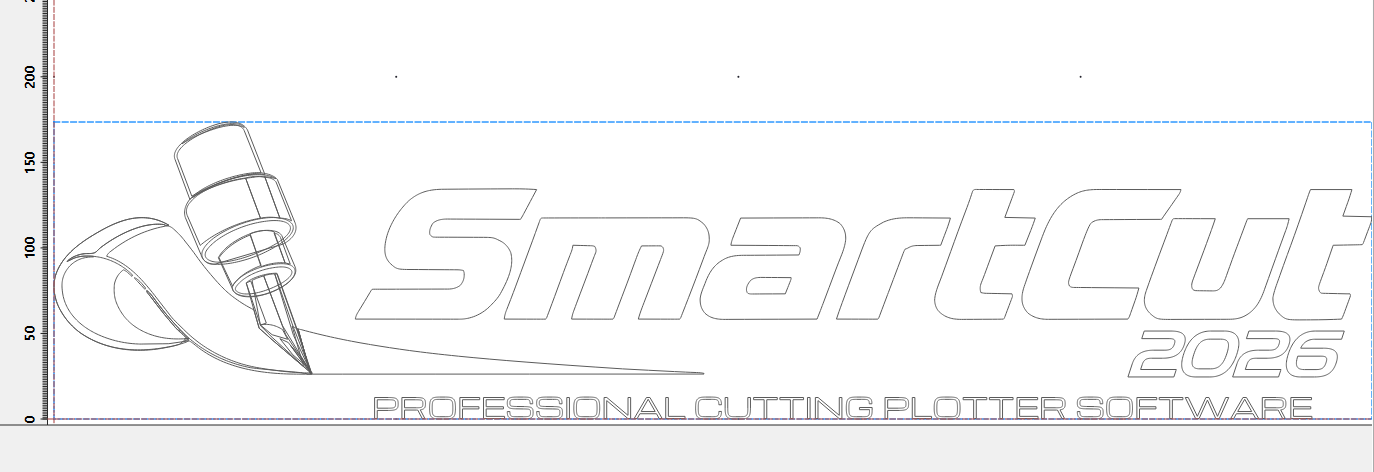
Your graphic appears in colour, just as you designed it. “Outline only” shows exactly the paths the blade follows.
SmartCut 2026
Import. Optimise. Cut. From CorelDRAW design to finished vinyl cut – no detours.
No payment details required. For Windows and Mac.
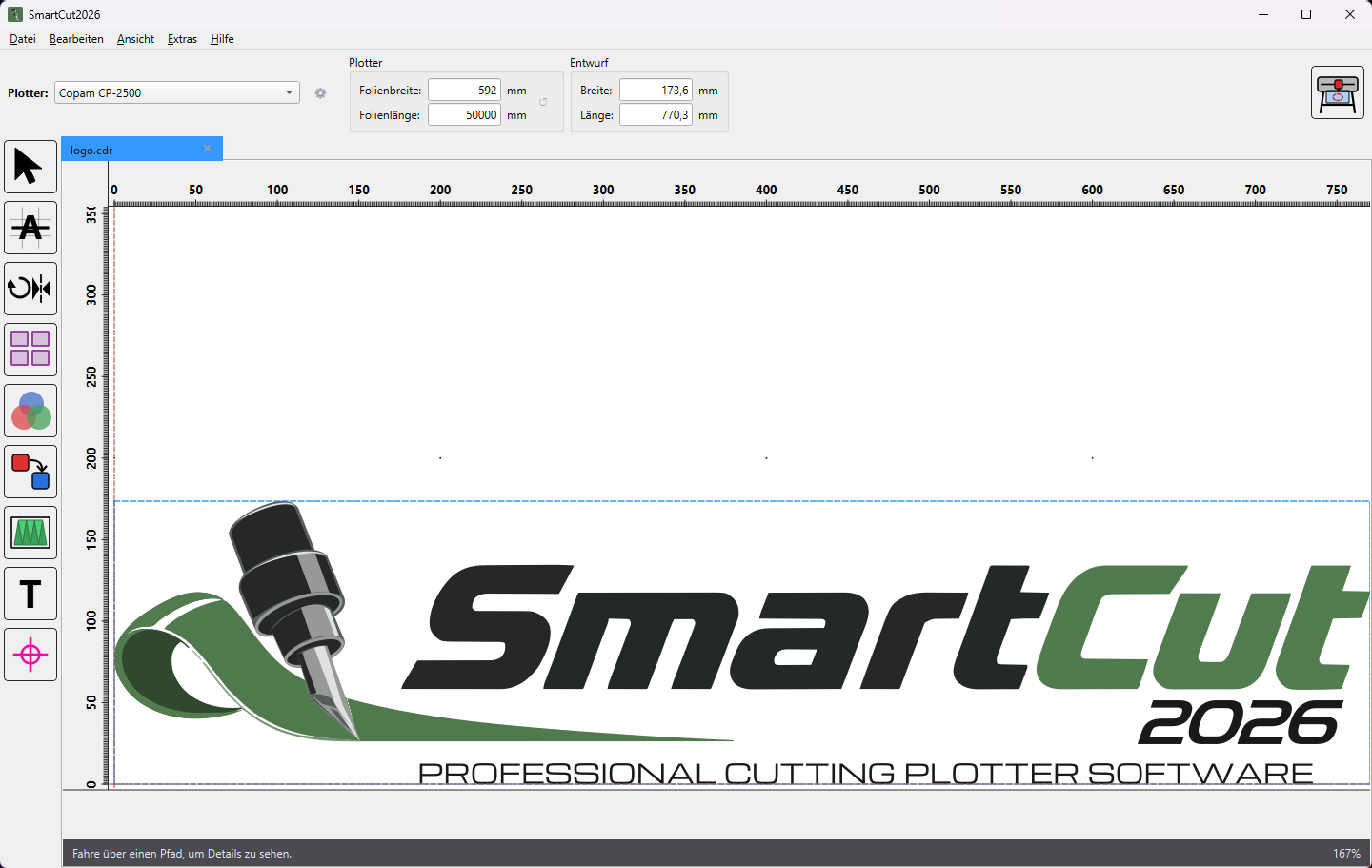
Save material. Save time. Cut precisely. SmartCut 2026 opens your designs directly, nests them true to shape, adds weeding lines at the touch of a button and sends the job to your plotter in optimised order.
The film
All features at a glance – from import to the finished cut.
Import
Open CorelDRAW up to version 2025, Adobe Illustrator, EPS, SVG and DXF files directly – including fill and outline colours. No exporting, no converting.
View
Your graphic appears in colour, just as you designed it. “Outline only” shows exactly the paths the blade follows.
CorelDRAW add-on
The “Cut with SmartCut” button transfers the selection or the current page straight from CorelDRAW. Text is automatically converted to curves in the process.
On opening
Too wide for the vinyl? SmartCut suggests segments. Thick outlines become filled shapes if required, and open contours and missing fonts are reported.
Tools
Six tools prepare your graphic – each one a single click away, and every edit can be undone.
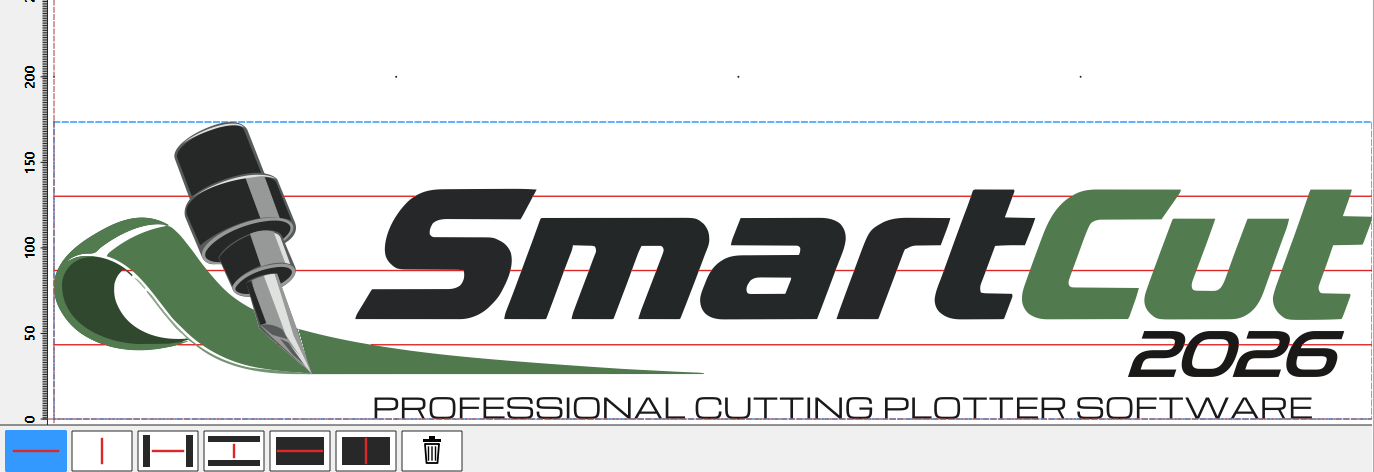
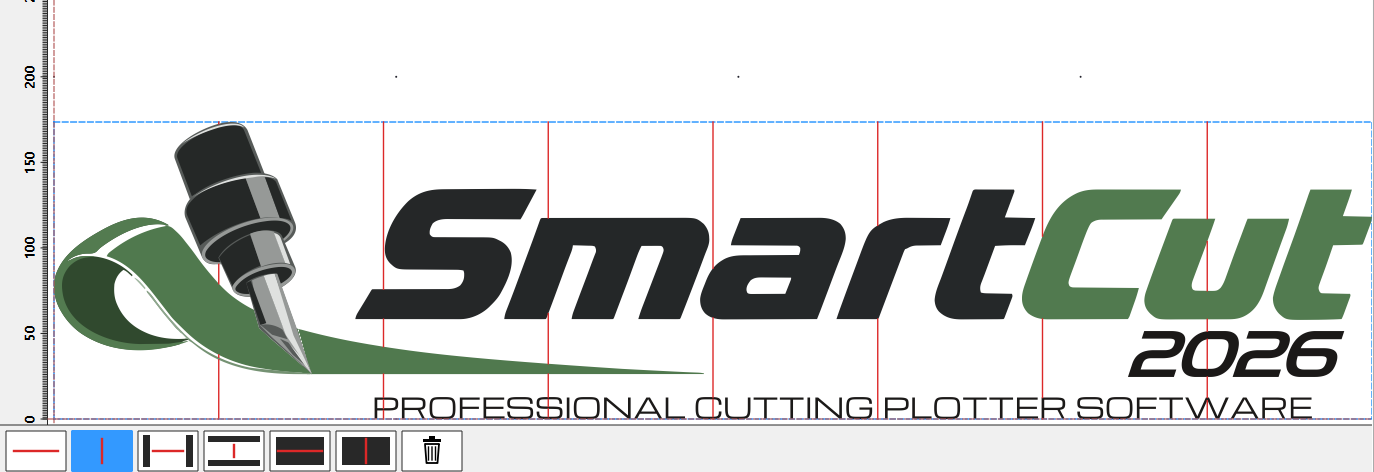
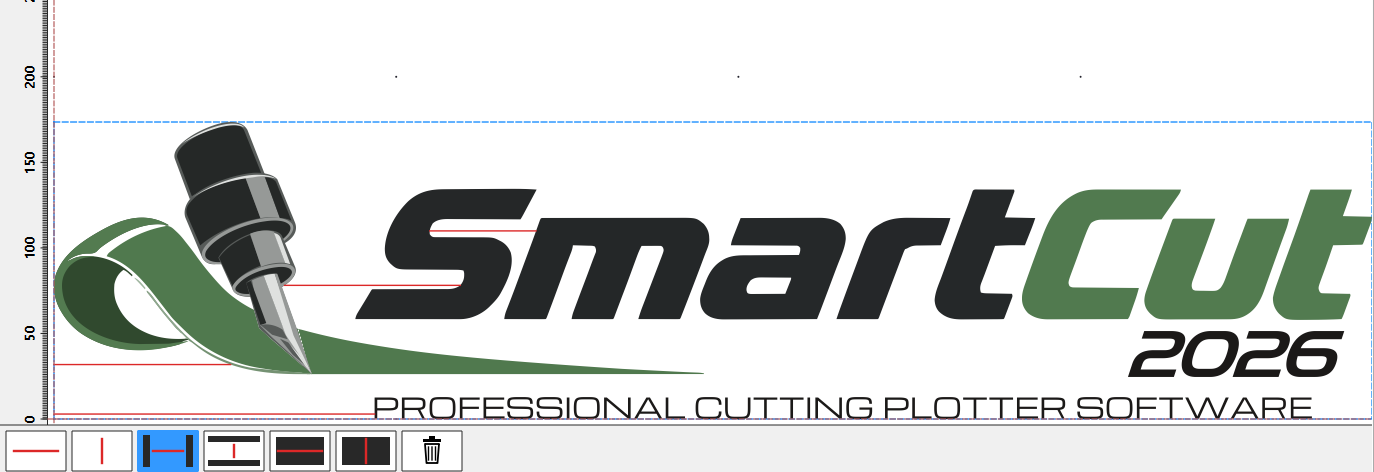
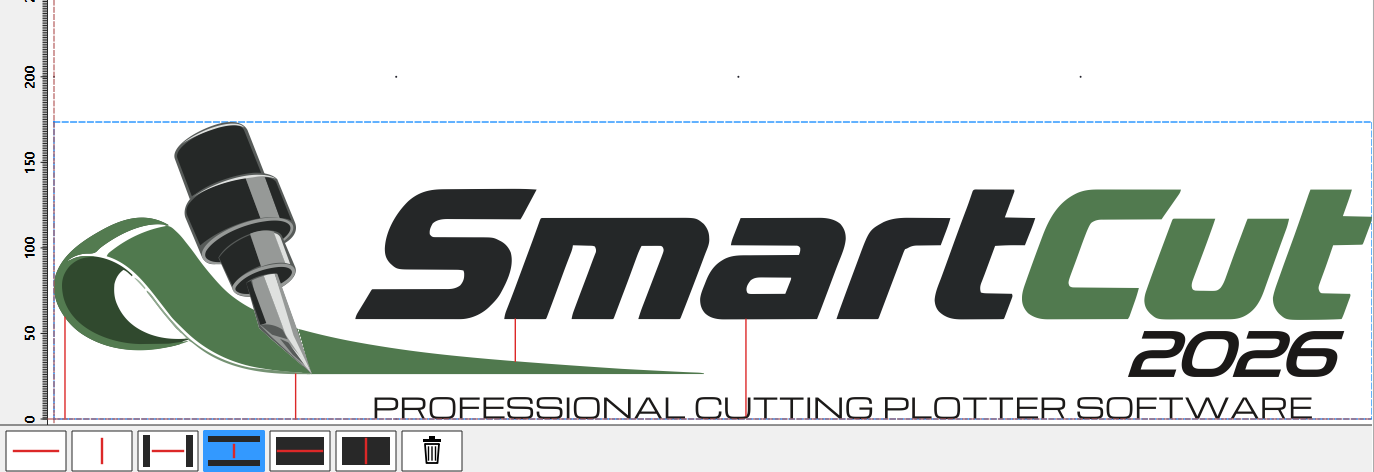
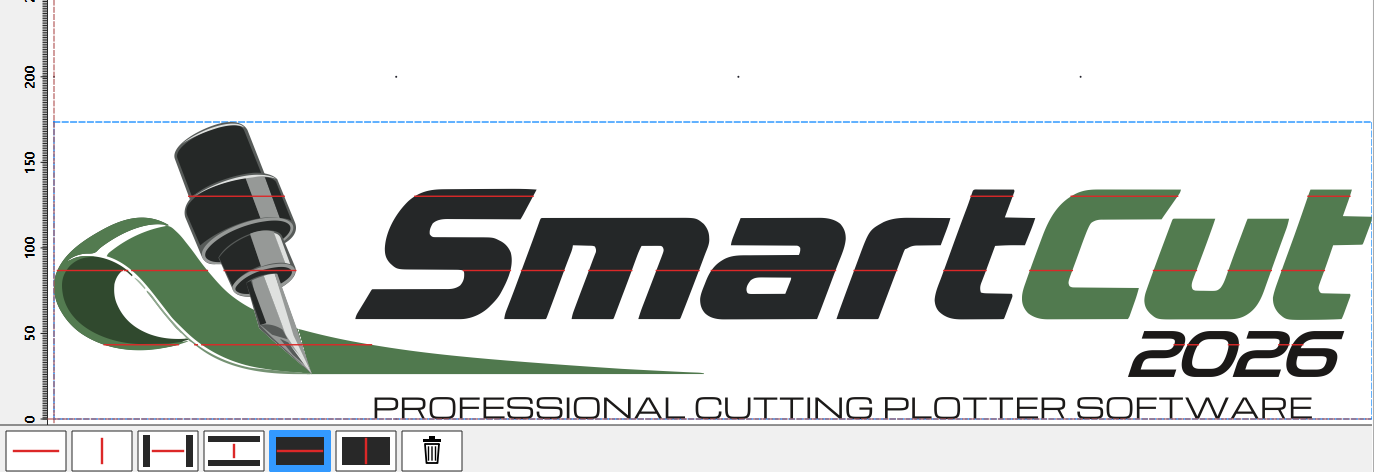
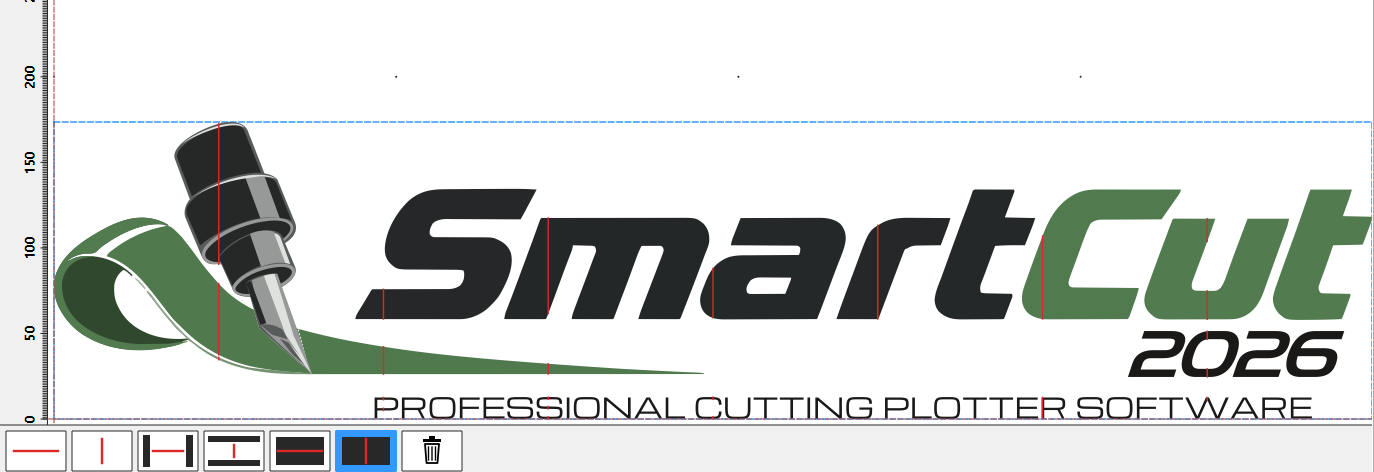
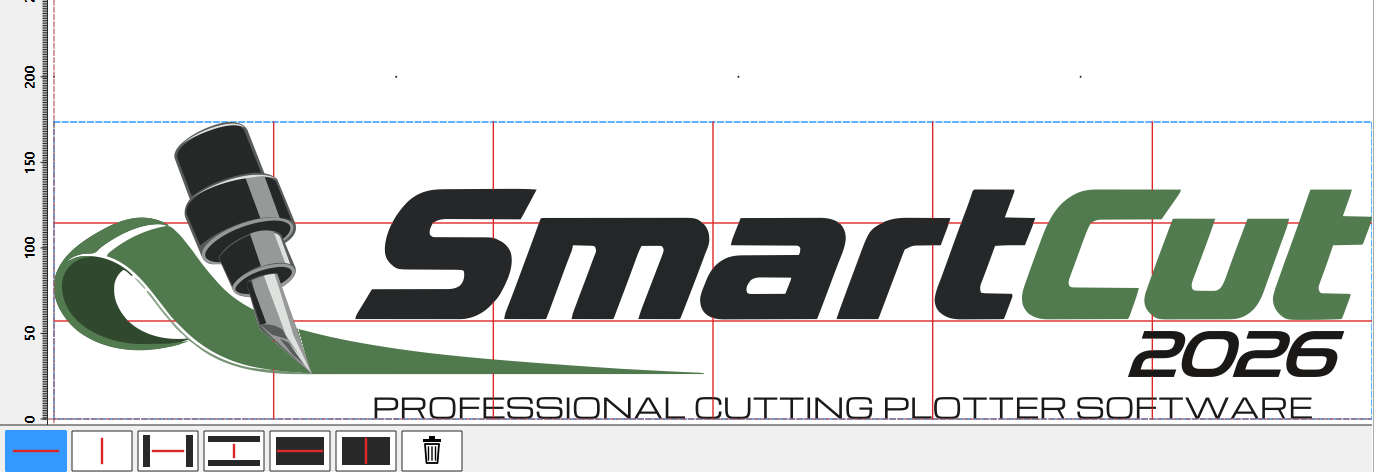
Weeding
Six line types, freely combinable. The lines run only through free vinyl and automatically skip objects – weeding frames are detected.
Continuous in the feed direction – divides the waste vinyl into strips along the roll.
Across the vinyl – divides the waste vinyl into sections that can be peeled off individually.
Just the one gap between two objects – without cutting up the rest of the waste vinyl.
Like short horizontal, but across the vinyl – for example between two letters.
Runs only inside filled objects – for stencils, negative plots and large areas.
The inverted line across the vinyl – divides large areas into manageable pieces.
All line types can be combined, moved with the mouse and deleted with a right-click.
Rotate
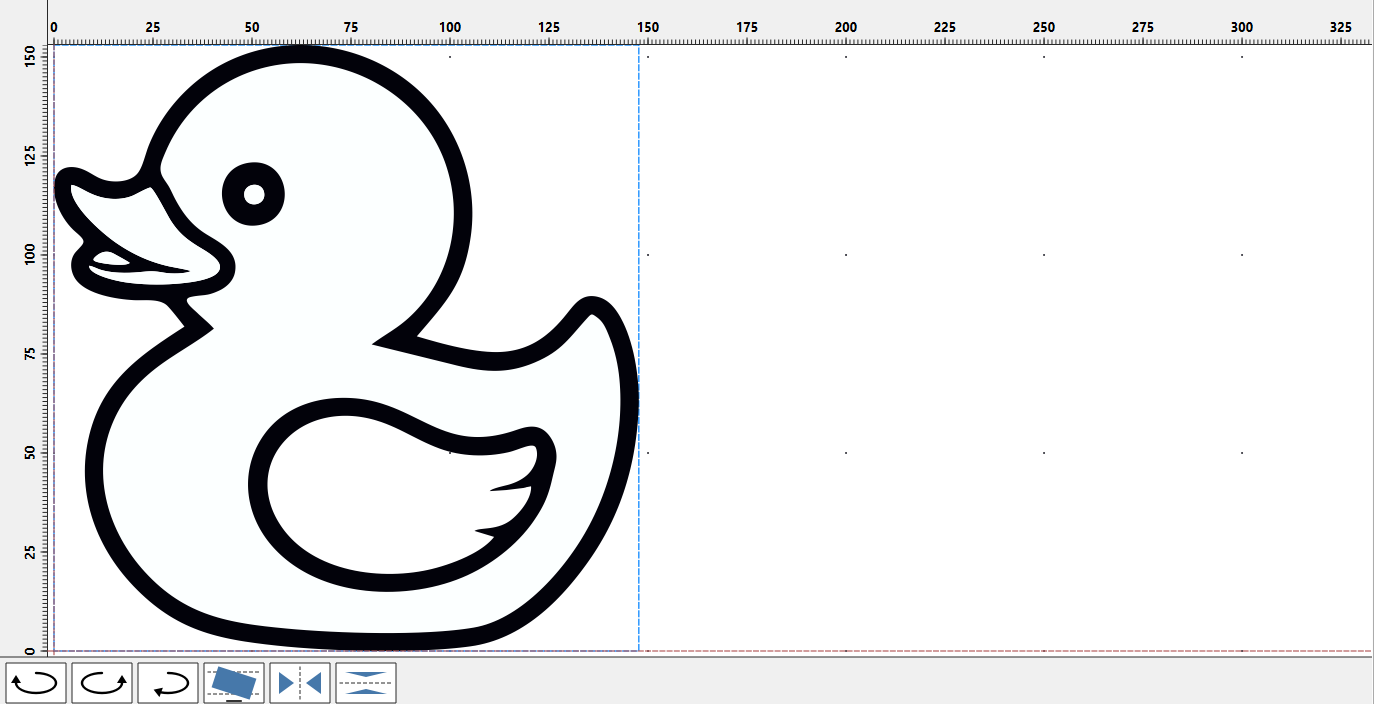
One click finds the angle at which the graphic fits the vinyl width and is shortest – accurate to 0.01°. Plus rotation in 90° steps and mirroring.
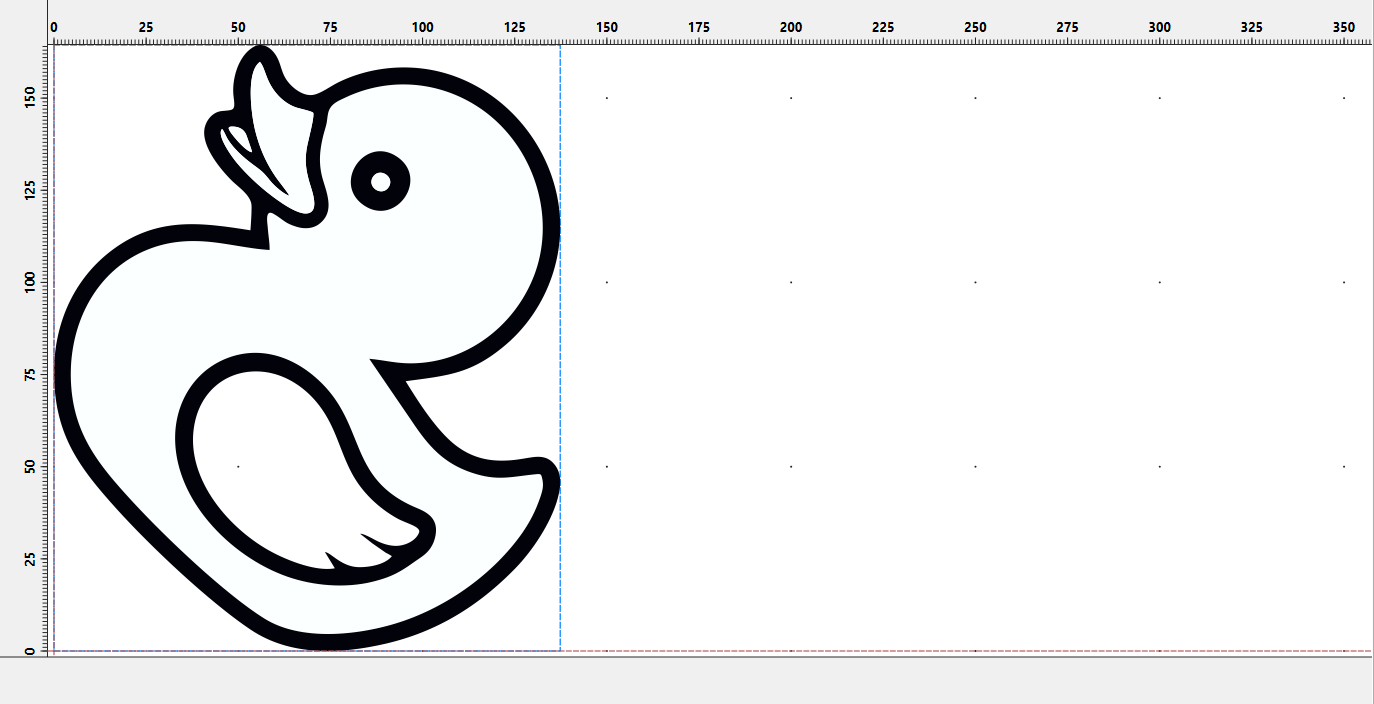
Segmenting
SmartCut splits the graphic to the usable vinyl width and creates each segment as a separate document – with segment frames for seamless assembly if required.
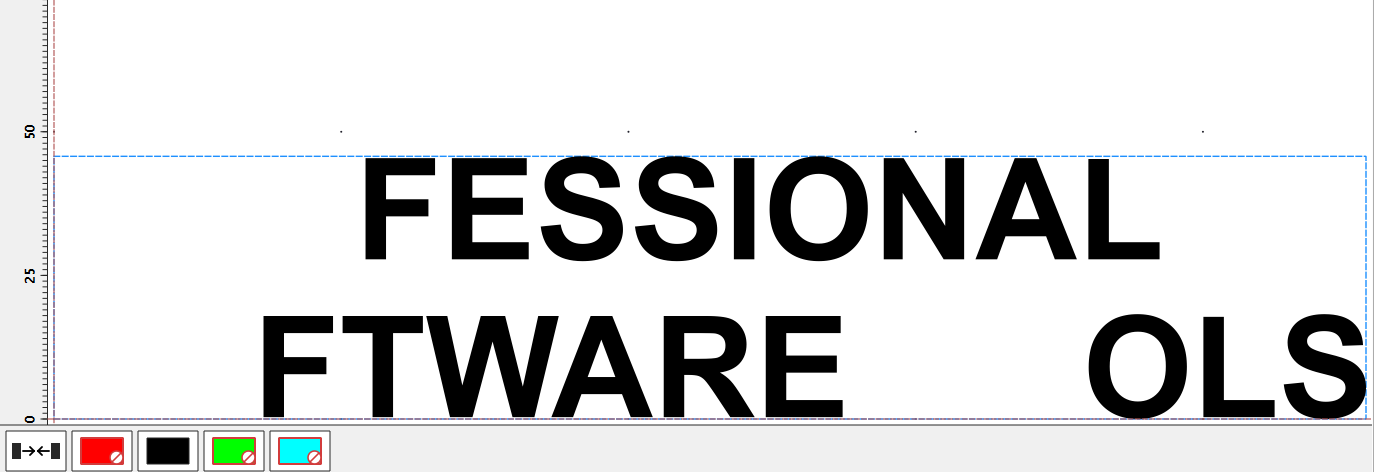
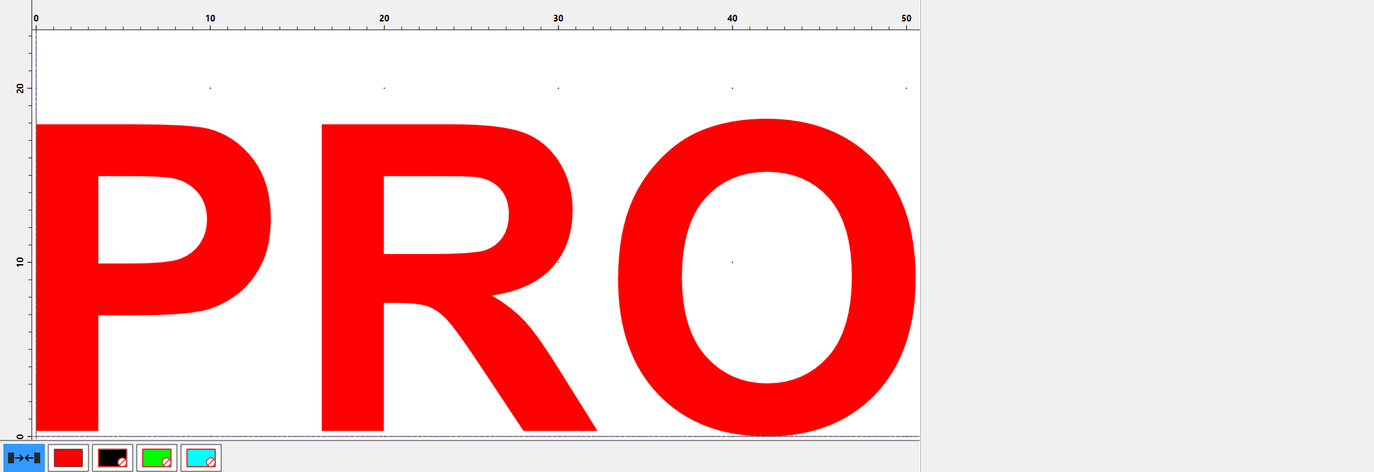
Colour separation
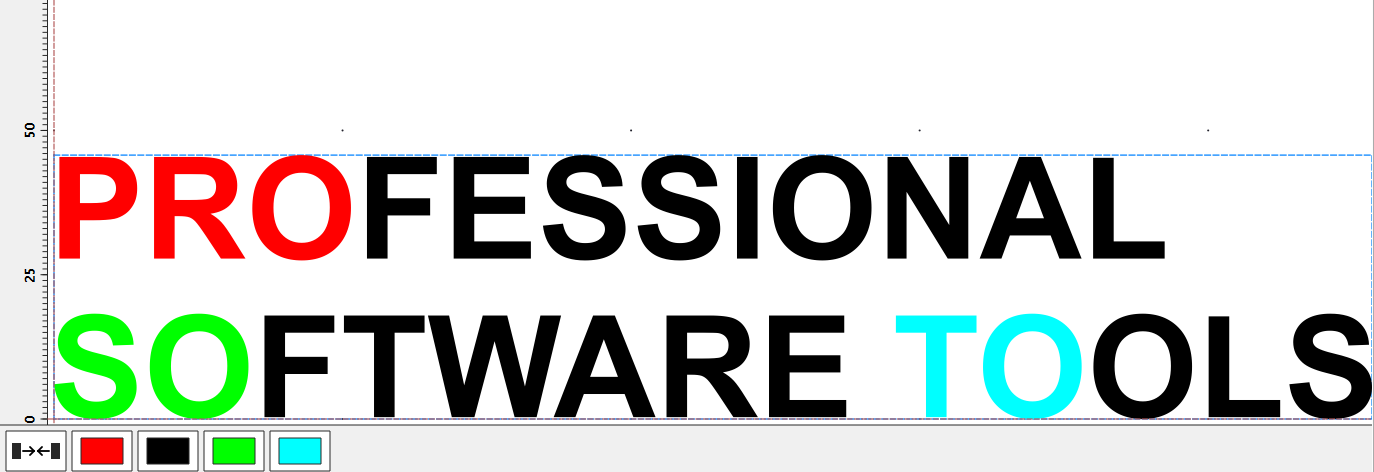
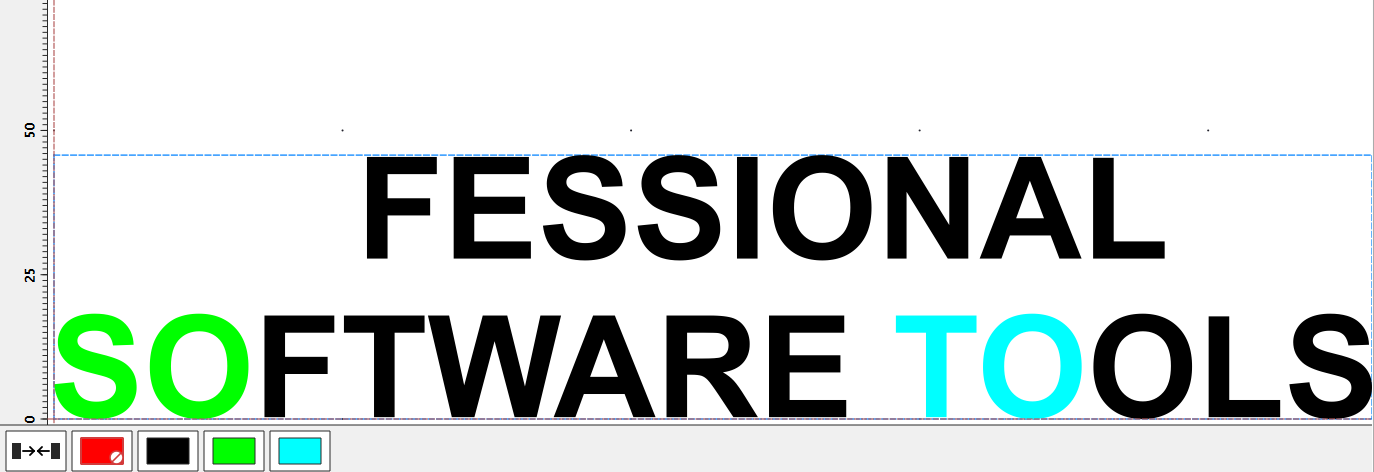
Show and hide colours with a click – only what is visible gets cut. With “Save vinyl”, the remaining objects move into the space that has been freed up.
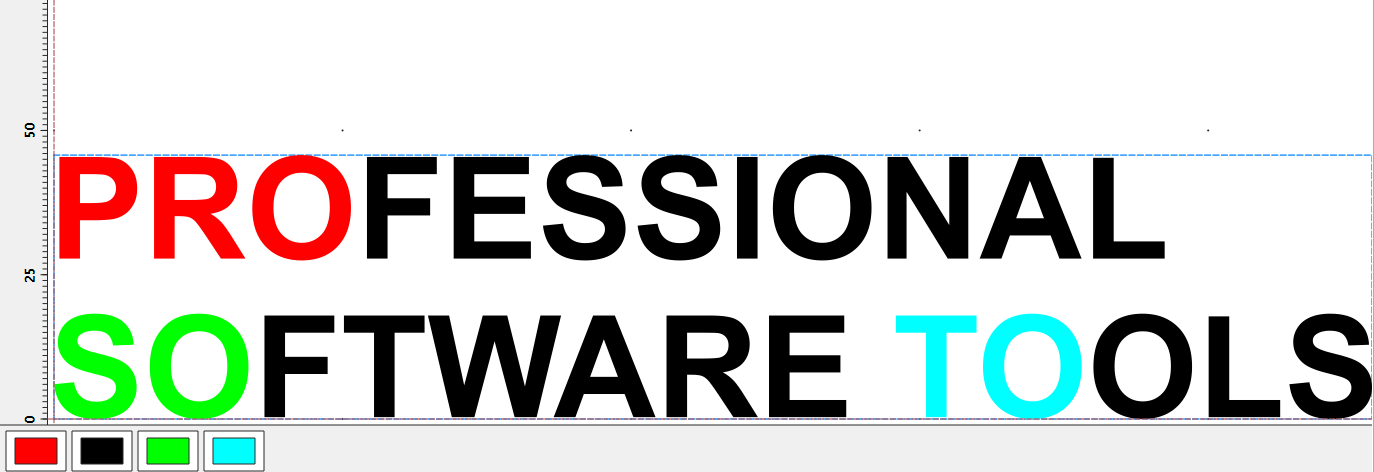
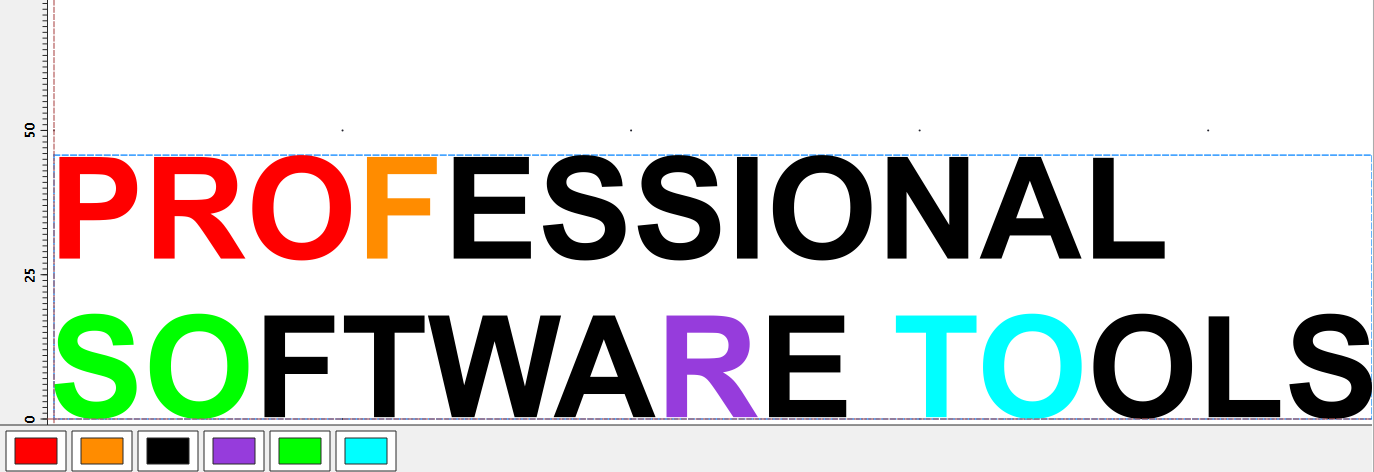
Colour changer
Recolour individual objects or entire colours – for example to combine similar shades into one vinyl colour.
Registration marks
Placed automatically inside or outside the design and cut with every colour layer – for multi-colour work that lines up exactly. Diameters from 3 to 100 mm.
Nesting
SmartCut nests true to shape rather than by bounding rectangles – with free rotation, in inner areas and in gaps. The variant comparison calculates every combination and preselects the best one.
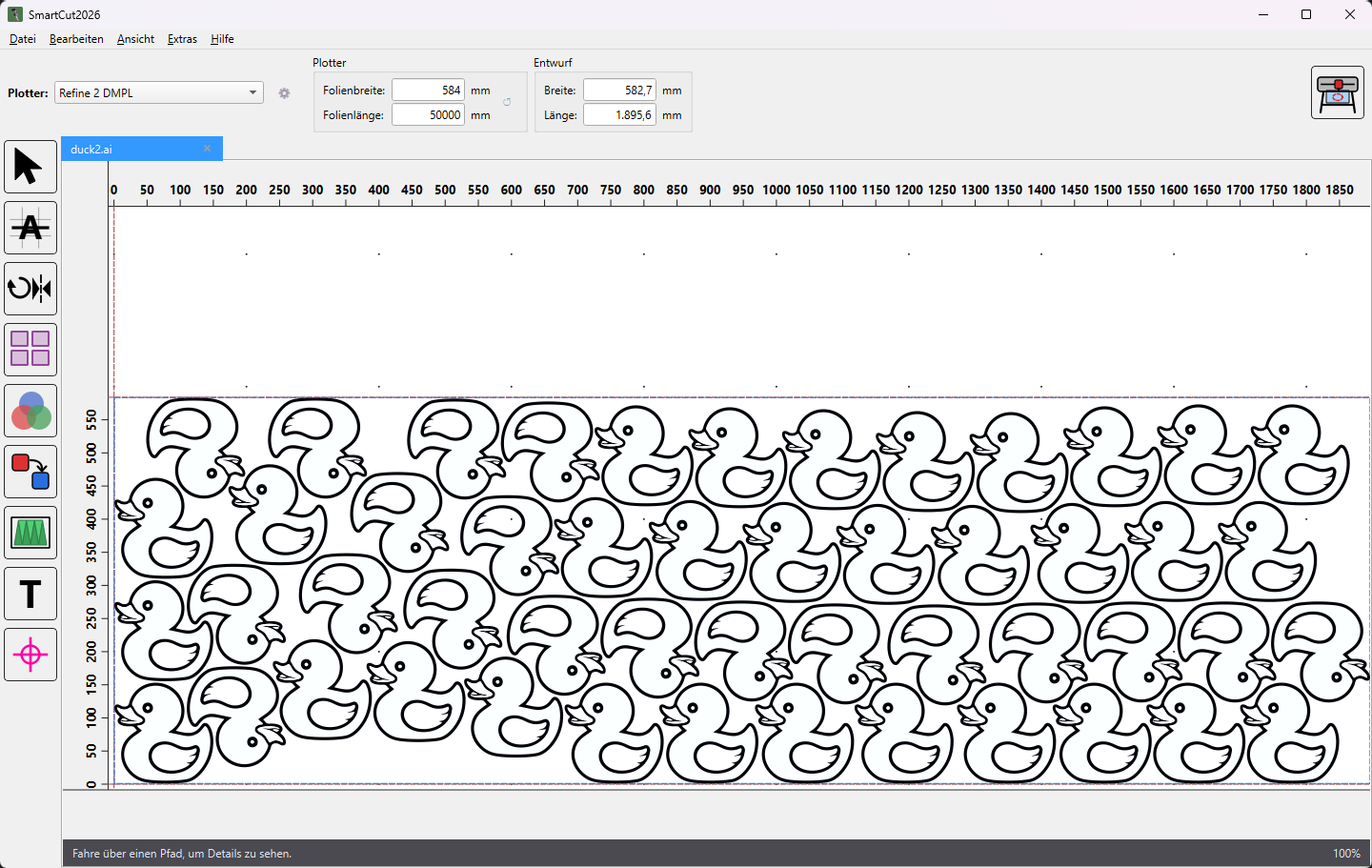
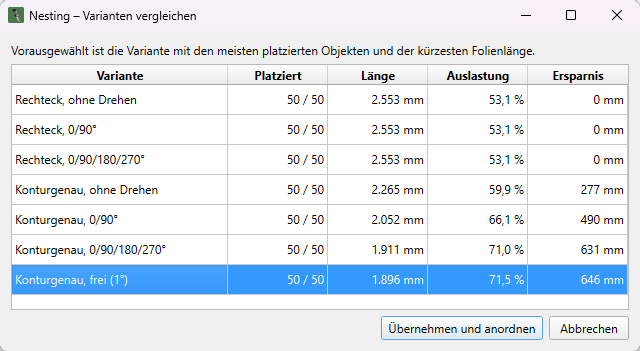
Example from the software: 50 copies on a 584 mm vinyl width, true-shape with free rotation – a vinyl length of 1,896 mm instead of 2,553 mm.
Every combination of accuracy and rotation at a glance: objects placed, length, utilisation and savings.
Shows vinyl length, utilisation and savings before you even arrange anything.
Copies may sit in the holes of other copies.
Fills free spots with additional copies without increasing the vinyl length.
Overlapping objects, such as the layers of a sign, stay together.
Minimum spacing freely selectable; rotation off, in 90° steps or freely in 1° steps.
Text
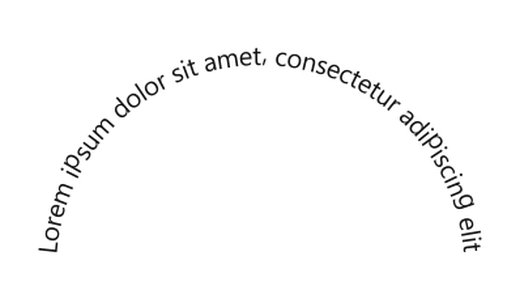
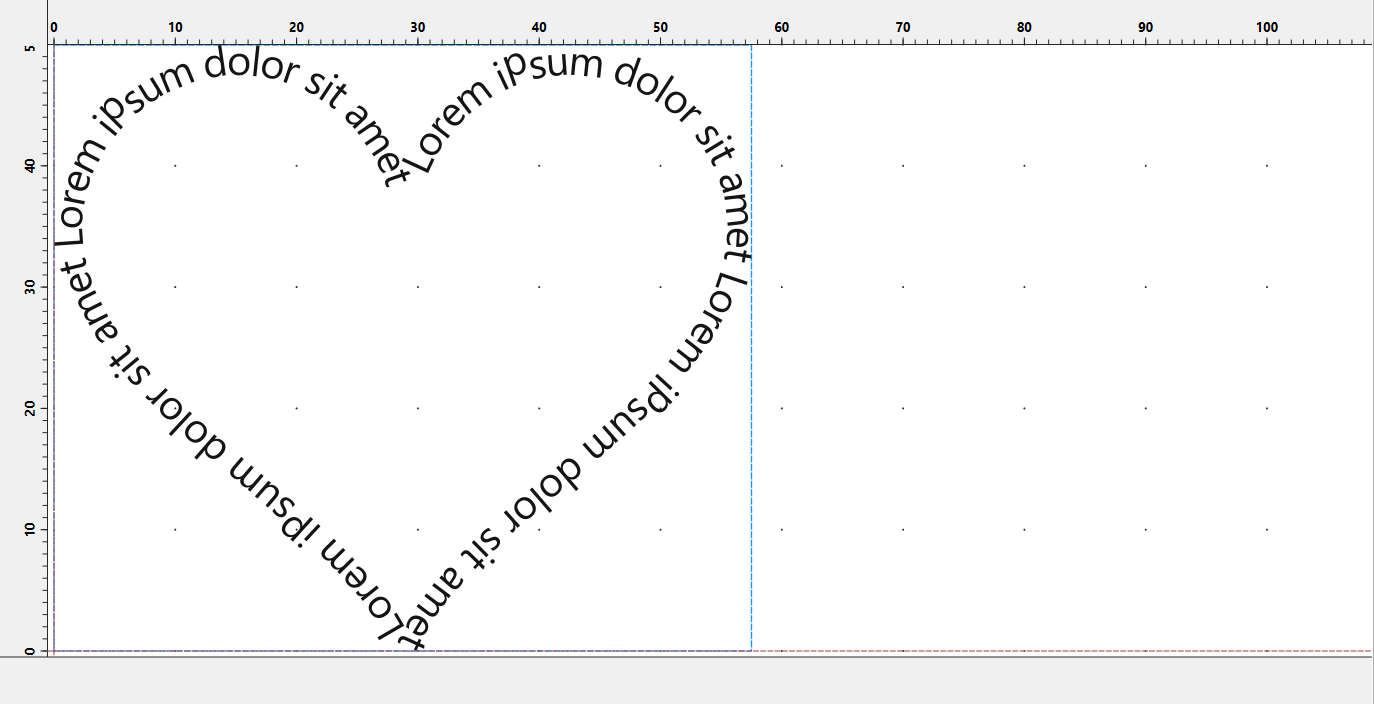
Lettering is created directly in SmartCut – the letters are cutting contours straight away. They are only shifted and rotated, never distorted, and in tight curves SmartCut automatically keeps them clear of one another.
 Arch up
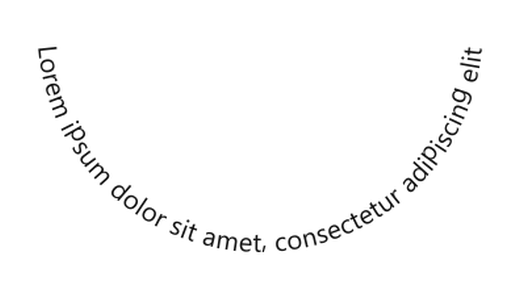 Arch down
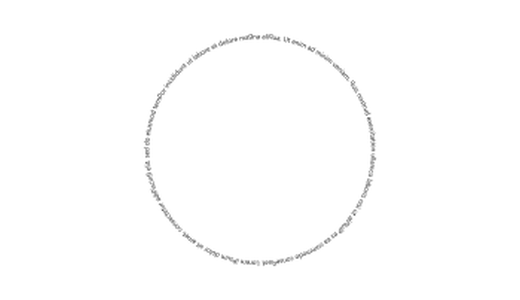 Circle
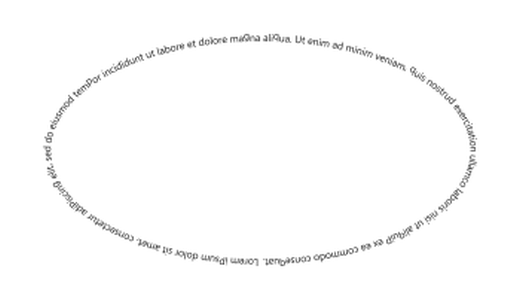 Oval
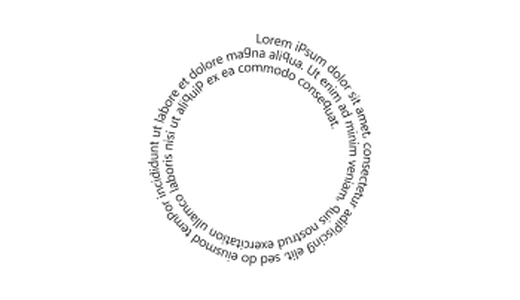 Spiral inwards
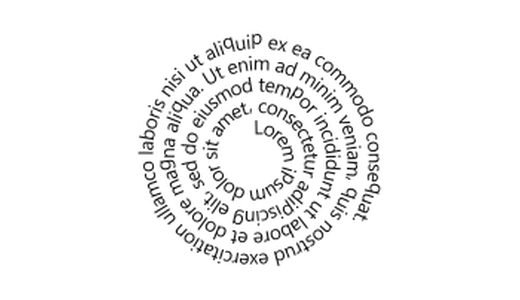 Spiral outwards
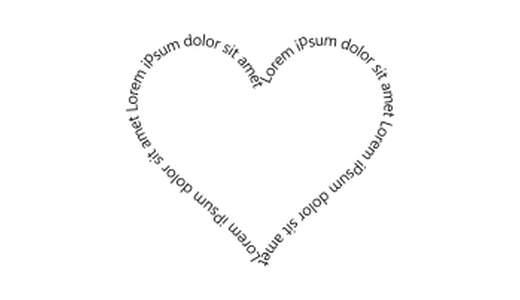 Heart
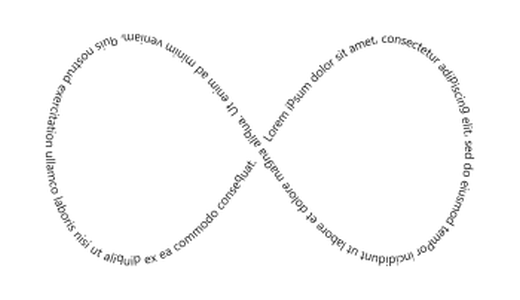 Infinity loop
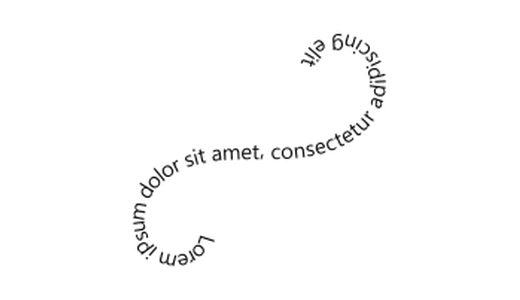 Flourish
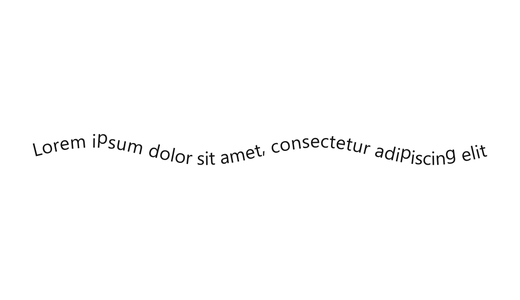 Wave
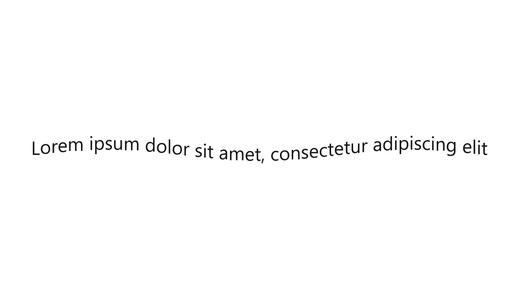 Flag
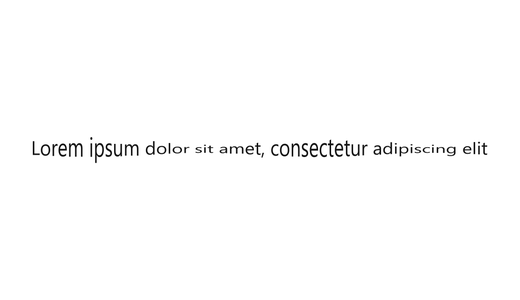 Pulsing
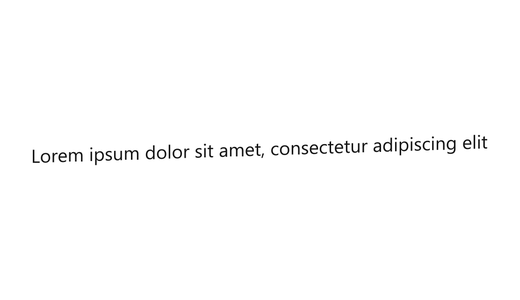 Rising
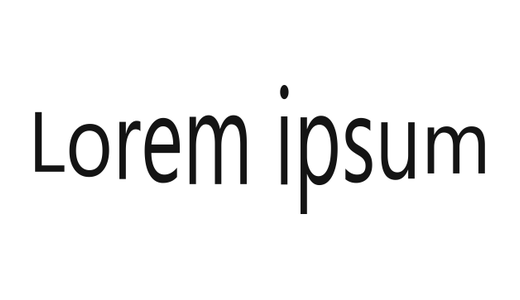 Bulge
 Pinch
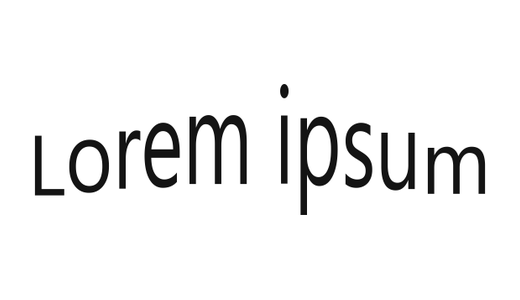 Bridge
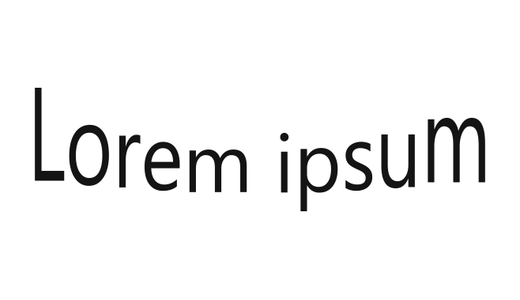 Sag
 Growing
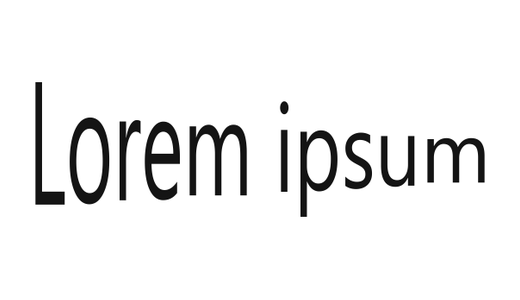 Shrinking
Formatting
Font, bold, italic, underline, strikethrough, superscript and subscript – in 24 vinyl colours or any colour you like.
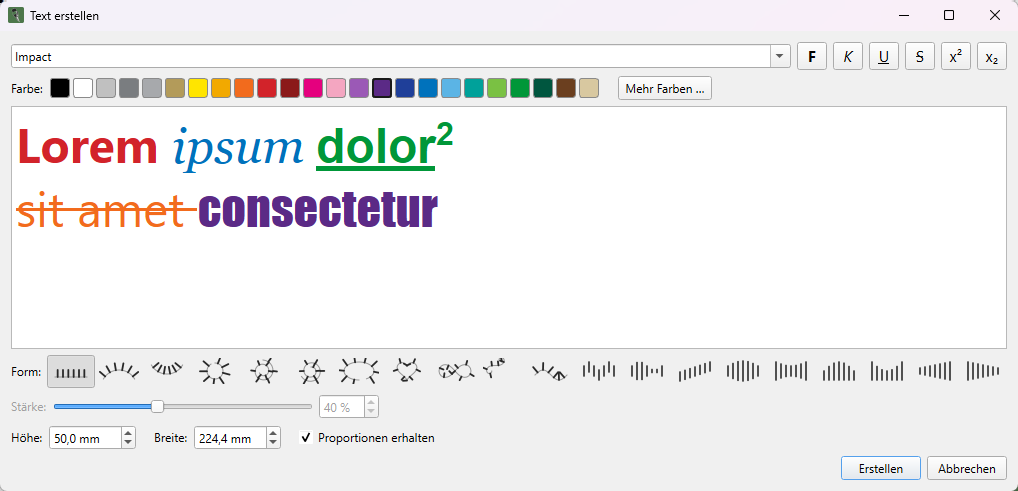
Result
The lettering is created as a separate document. Underlines and strikethroughs merge with the letters into a single cutting shape.
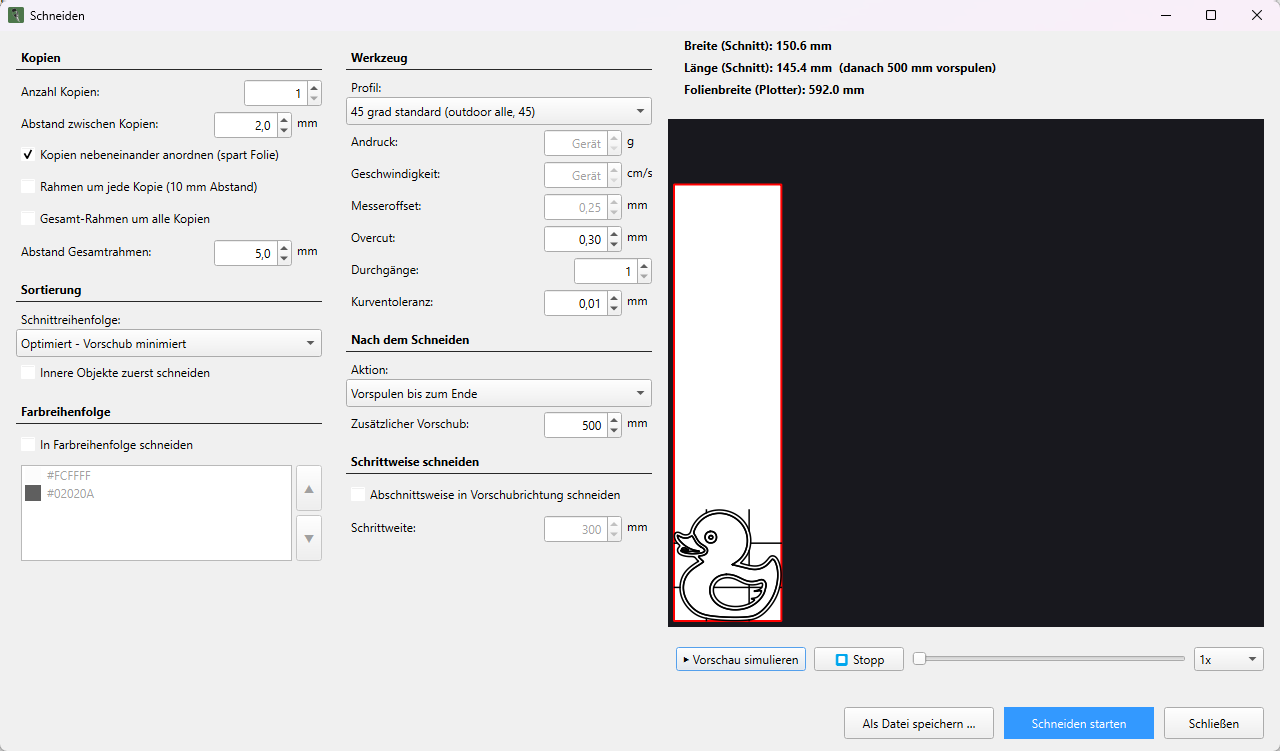
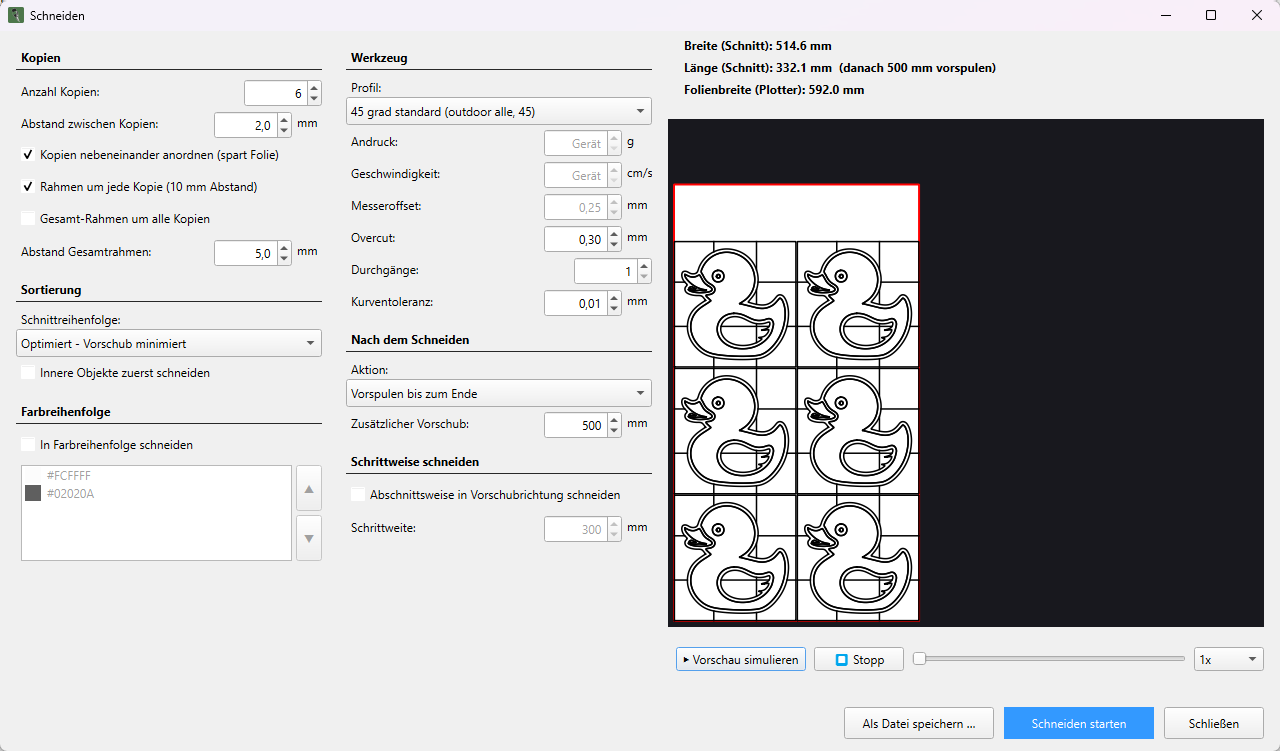
Cutting
The preview shows the actual cutting paths. The simulation runs through them in the real order – including travel moves.
Simulation
Optimised cutting order: all objects of all copies are cut from front to back, minimising feed.
Long jobs
Sectional cutting works through long jobs piece by piece in the feed direction – ideal for vinyl that tends to distort.
Copies
Up to 200 copies, arranged side by side as soon as two fit across the vinyl width – with a frame around each copy or one overall frame around them all.
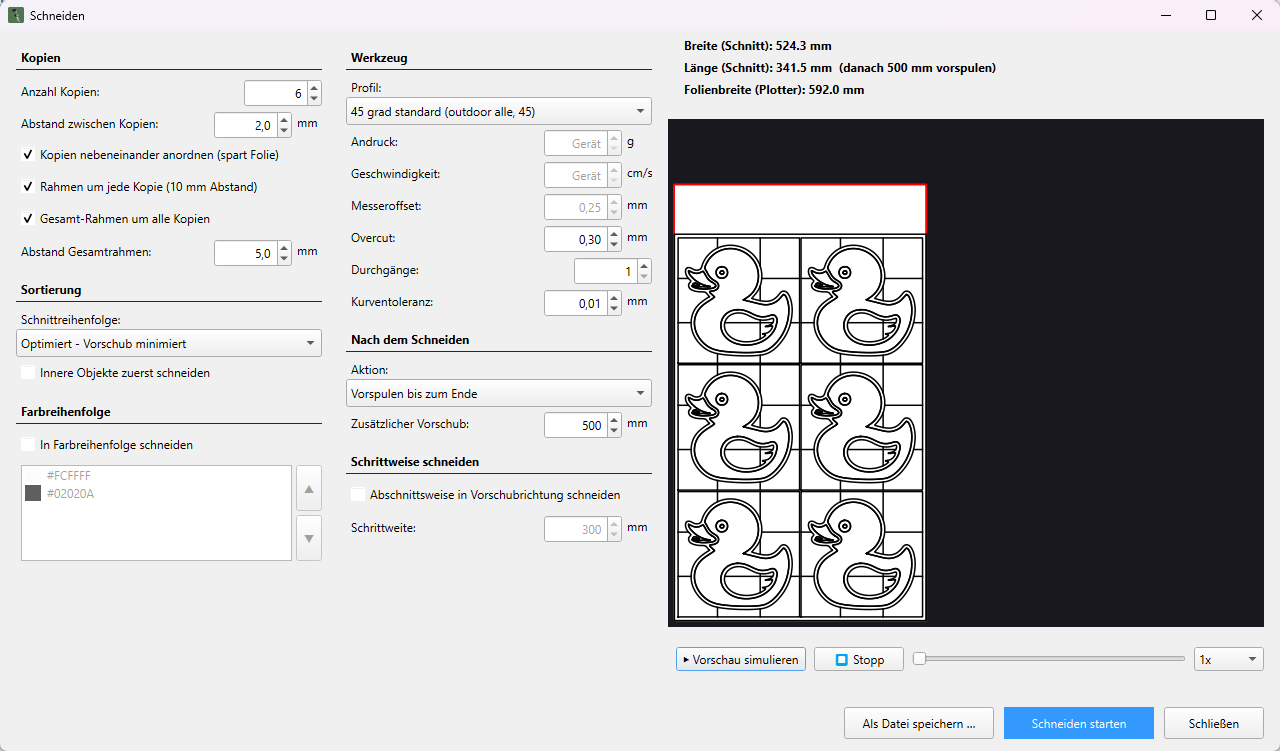
Compensates for the offset of the drag knife blade – for clean corners and curves.
Closes every contour cleanly so that nothing snags during weeding.
Minimised feed, original order, inner objects first or colour by colour.
Pressure, speed, blade offset and overcut – saved per plotter, vinyl and blade.
Cuts each contour several times if required.
Simplifies fine curves and keeps large jobs small.
SmartCut removes coincident contours before cutting – nothing is cut twice.
Output the job as a .plt file instead of sending it to the plotter.
Plotter
around
1600
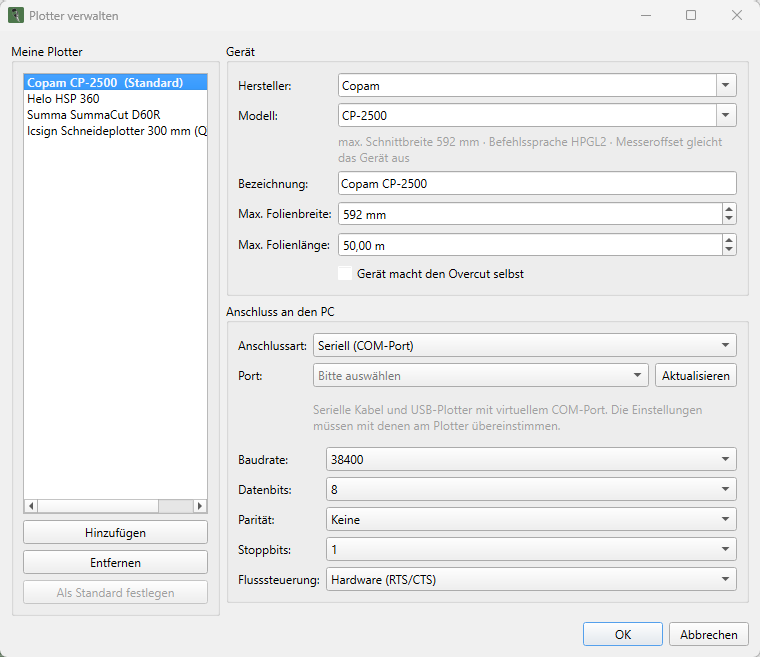
Plotter models from more than 90 manufacturers
Select manufacturer and model, choose the connection, start cutting. The catalogue supplies the vinyl width and matching cutting profiles – devices that are not listed run via HPGL.
Saves every edit – from rotation to nesting. When you open it, you pick up exactly where you left off.
Every document has its own history, and every edit can be undone.
Exclude individual objects or entire colours from the cut with a right-click.
Every file, every text and every segment gets its own tab.
The appearance follows the system or your own choice. The canvas stays white, like the vinyl.
Rulers, vinyl boundaries and design dimensions – enter a number and the design scales proportionally.
Pricing
Try free for 14 days, then choose monthly or yearly billing.
Register, receive your trial key, start cutting – for 14 days with all features.